


When you see a double image on your screen or a blurred trail behind your cursor while you’re moving your cursor, it can be frustrating particularly when everything else looks fine. The shadow of a monitor may possibly compromise productivity, make gaming an unpleasant experience and stress your eyes throughout long gaming sessions.
The good news? The majority of these are not hardware problems and can be resolved with existing hardware. This guide helps you to understand the 5 major causes and provides you with clear and actionable solutions for each cause.
What is a Monitor Shadow?
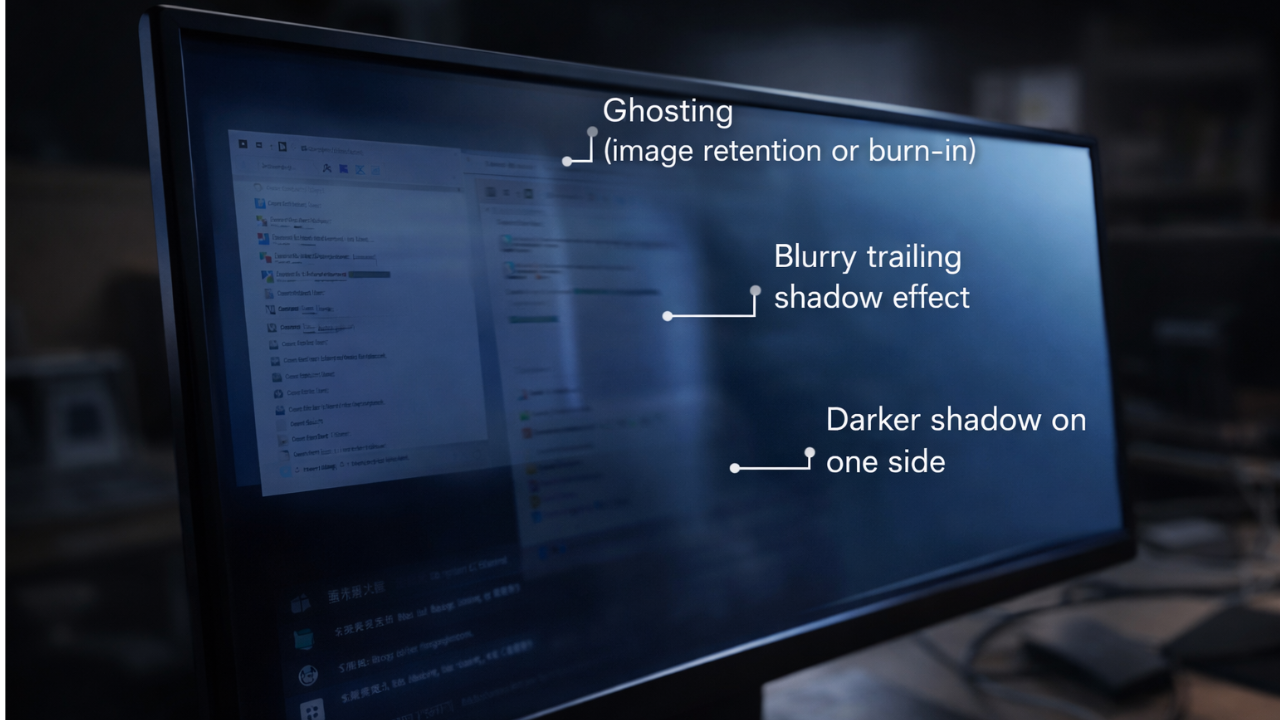
To solve a problem one must first know what problem they are facing; before rushing into solutions. There are three different display artifacts that are frequently confused.
Signal issue: A static shadow. It produces a slight double outline around objects normally still, although this can happen with moving objects too, such as images or text on the desktop, usually due to a poor quality or problematic cable.
Motion-related problem screen ghosting. Pixels don’t change color quickly enough and therefore, a ghostly image of movement remains. Imagine a particle of clear “phantom” driving along by itself at high speed.
Burn-in is damage to the hardware that occurs as the image causes static conditions that cause the pixels to fade over time. Burn-in is different from shadowing or ghosting, and can’t be fixed by settings or cable changes.
It is important to determine the type, because the correction differs from each type.
5 Common Causes of Monitor Shadow
1. Slow Pixel Response Time
On an LCD, each pixel has to rotate the liquid crystals in itself to alter the colour of the display. Pixels that fall behind fast-moving content leave behind a “ghosting” effect that shows the previous color in the space where the content was. This occurs particularly in VA panels in the dark-to-gray range, and is often referred to as “dark smearing.
2. Refresh Rate and Frame Mismatch
The refresh rate (Hz) of your monitor is the number of frames that refresh every second. If your GPU delivers a frame rate faster than your monitor can handle, you’ll experience judder, stuttering and shadowing. When the speed of the object is high, at 60Hz, the objects will look jarring because there will be big gaps between the frames that our eyes will fill with blur.
3. Incorrect Overdrive Settings
Overdrive is an in-built function that increases the voltage to the pixels to enhance the color transition. If it is set too low, ghosting will continue to occur. If it is set too high, then you will end up with “inverse ghosting” (bright, glowing haloes/coronas around moving objects). Many monitor manufacturers use “Trace Free,” “Response Time,” or “Motion Clarity” as terms of their labeling in the year 2026, which makes it easy to end up with a harmful setting.
4. Panel Type and Panel Aging
Some screens are better than others. The VA panels have high-contrast but have problems with slow transitions between the black and gray. IPS panels are a balance between speed and color accuracy. Nearly impossible ghosting due to the very quick OLED pixel response times of about 0.03ms. All LCD panels age over time losing responsiveness of the liquid crystals, and voltage delivery becomes erratic, which over time worsens existing shadow problems.
5. Cable and Firmware Problems
It’s not always the screen causing a monitor shadow problem. Unprotected or poor-quality cables are susceptible to electromagnetic interference, which makes anything that doesn’t move look faint or flicker. If frames are received out of order, it can be due to out-of-date GPU drivers or buggy monitor firmware, which can give the appearance of a failure.
Read Also: Usanewscity .com: Everything You Need to Know About the Trending Website
Fix Monitor Shadow Step-by-Step
Before you think about replacing the hardware, do the following:
Step 1- Set Overdrive, Trace Free or Response Time to “Medium” or “Normal” (in your monitor’s OSD menu). Don’t use “Extreme” or “Ultra” modes – this almost always produces inverse ghosting.
Step 2- Set native refresh rate: Change the refresh rate in your operating system’s display settings to the highest possible refresh rate. A lot of monitors run at 60Hz though they can support 144Hz or greater.
Step 3- Enable Adaptive Sync: Enable G-Sync or FreeSync in your GPU control panel to synchronize frame output to your monitor’s refresh rate, so that you don’t experience shadowing issues caused by judder.
Step 4- Use a certified HDMI 2.1 or DisplayPort 2.1 cable: Change the cable to a certified HDMI 2.1 or DisplayPort 2.1 cable. Don’t use generic replacements; poor shielding is a surprising cause of static shadow artifacts.
Step 5- Update drivers and firmware: Install the drivers and the firmware completely using Display Driver Uninstaller (DDU). Or visit the manufacturer’s website to see if the latest firmware update has been released for the monitor.
To check your fix, please go to testufo.com and check out the Blur Busters UFO test. If the result shows nothing but no glowing halos and shadows behind the subject, it’s good and the problem is solved.
How to Know When It Is Time to Get a New Monitor?
Shadows that remain in BIOS, don’t go away after multiple devices connect, or cause dark static bands on screen are indicative of a hardware failure issue, not a setting problem.
Sometimes the only explanation for VA panels exhibiting chronic dark smearing is that they are approaching the state of their technological limits, which is not considered a defect. A 24″ computer monitor is the minimum requirement for using a fast-IPS screen.The minimum monitor size you can use a fast-IPS monitor is 24″. The near-instant pixel response means that OLED has virtually no ghosting, for the cleanest result.
FAQs
1.What is the difference between monitor shadow and screen ghosting?
No, a monitor shadow is usually a non-dynamic problem due to cable interference, appearing as a double outline around stationary objects.
2. Is it possible to eliminate the shadowing from a monitor without getting a new monitor?
Yes, in most cases. The vast majority of the problems with shadows can be solved without any additional hardware with these adjustments to the overdrive settings, setting the correct refresh rate, enabling Adaptive Sync and replacing a low-quality cable.
3. Is monitor shadow abolished with a higher refresh rate?
The farther apart an object is from one frame to the next, the more noticeable ghosting will appear, so a higher refresh rate will minimize ghosting.
4. Which type of panel has the least chance of causing shadowing?
The gold standard is OLED and the response time of the pixels is around 0.03ms, which makes it difficult to shadow the image as is done with traditional LCDs.
Read More: Technomantu: A Comprehensive Guide to Instagram Growth
